1) Start Visual Studio 2026.
2) Click ‘Create a new project’.
3) In ‘Create a new project' window, select ASP.NET Core Web App or search it manually, then click on ‘Next’ button.
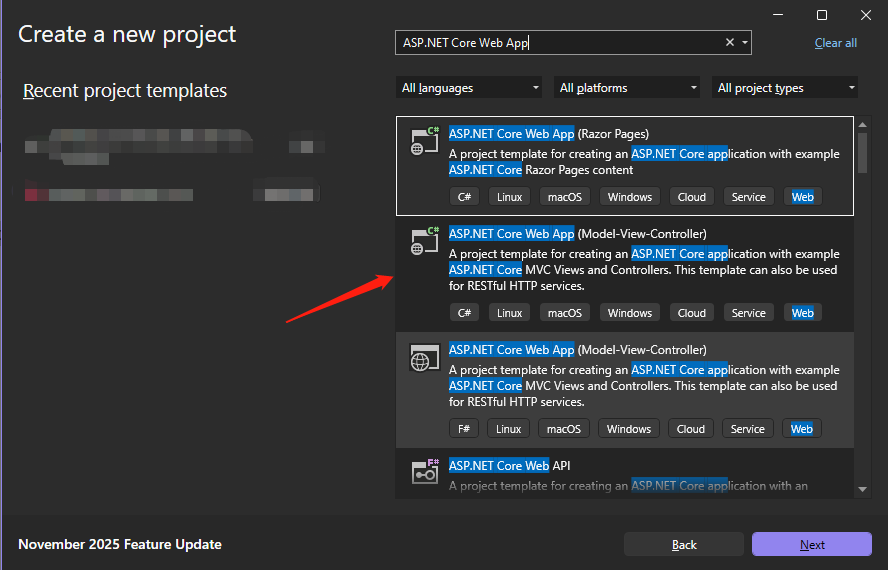
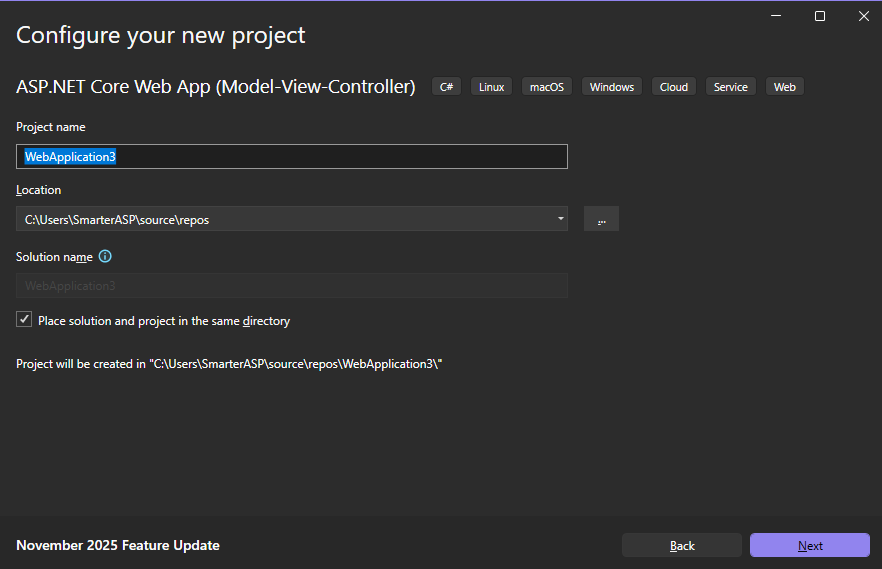
4) In the next window, type a project name and click ‘Next’.
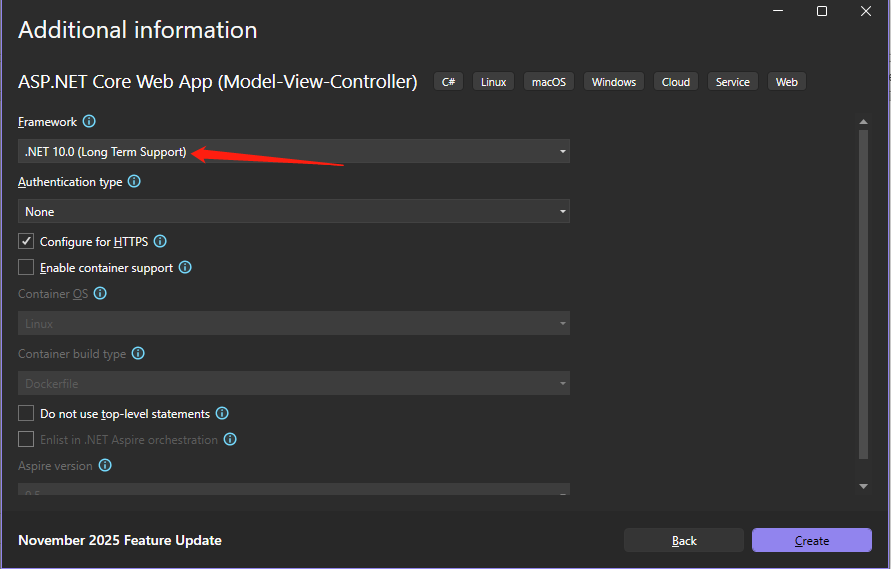
5) In the Framework field, choose ".NET10".
6) Open the 'Publish' settings in your project by right clicking on it in the Solution Explorer window and then selecting it.
7) Choose Import Profile and click the ‘Next’ button.
PS: you can easily download publish settings file from control panel like the screenshot below.
8) Edit this profile and go to connection section, enter your web deployment password and validate the connection.
9) Then click 'Next' or 'Settings' button to update the 'Deployment Mode' to 'Self-Contained' and 'Target Runtime' to 'win-x86'.
Now, you can deploy your solution to the platform of your choice without the need for certain assemblies to be installed on the server to support a particular .NET Core version.
Note: A Self-Contained ASP.NET Core application requires more memory to run because it is loading all the assemblies required by the version. You can reduce the memory usage by changing the garbage collection mode from server to workstation. Just add the <ServerGarbageCollection> XML markup to the ASPNETCore.csproj file and set it to "false".
<PropertyGroup>
  <ServerGarbageCollection>false</ServerGarbageCollection>
</PropertyGroup>